
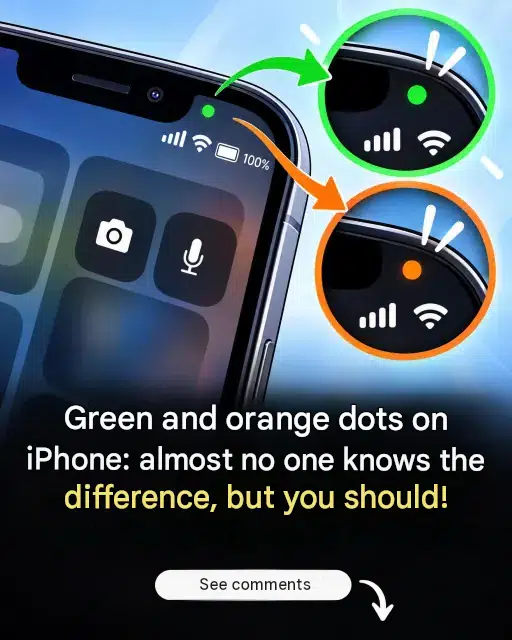
You’ve surely noticed it. That little colored dot that discreetly appears at the top of your iPhone screen, right next to the battery and Wi-Fi icons. Orange sometimes, green at other times. For a long time, many of us ignored it—or worse, worried about it without really knowing why. What if this tiny indicator was actually one of your phone’s most useful features?
The orange dot: your microphone is working
You make a phone call and suddenly, an orange dot lights up in the top right corner of the screen. Don’t panic, it’s perfectly normal! This orange light simply means that your iPhone’s microphone is active . It lights up during a regular call, but also when you use Siri, a voice assistant, or an app that needs access to sound.
This is a feature introduced with the iOS 14 update, designed to give you clear and immediate information. At a glance, you know that something is picking up your voice.
The green dot: the camera is activated
The green dot indicates your iPhone’s camera . It appears whenever an app uses your lens, whether it’s FaceTime, WhatsApp video calls, Zoom, or any other video conferencing app. It’s your visual confirmation that the camera is working.

Simple, effective, and frankly well thought out by Apple.
Why these indicators are really good news
Where it gets really interesting is when you understand the logic behind it all. These indicators were designed to protect your privacy . Here’s why that’s important.
If you initiate a FaceTime or voice call yourself, seeing the light come on is perfectly normal. You’re the one who started the action, so everything’s fine. But if this light appears when you haven’t opened any apps… then you should pay attention. It could indicate that an app is running in the background and accessing your microphone or camera without your permission.
How to identify the relevant application on iPhone
Good news: identifying the source of the problem is really simple on iOS 14 and later versions.
Quick method: as soon as you see the indicator light on, swipe down from the top of the screen to open the Control Center. The name of the app using your microphone or camera will be displayed directly. Handy, isn’t it?
If your iOS is older: close your apps one by one and see if the indicator light goes out. The one that makes it disappear is the culprit.

How to revoke access to an application
To regain control, go to Settings → Privacy and security → Microphone (or Camera ). There you will find the complete list of allowed apps. Simply disable access for those that have no valid reason to have it.
Fast, efficient, and reassuring.
These two little dots are ultimately your best allies for keeping control of your phone, with complete peace of mind.
